Need Help

Setting up

AX3000 5G


Keeping your Net All Over router's firmware up-to-date is vital for ensuring smooth and reliable internet connectivity. Regular firmware updates address potential security vulnerabilities, enhance performance, and introduce new features, improving your overall internet experience.

Updating your router's firmware is a straightforward process that can typically be done through the router's admin panel or the manufacturer's website. Net All Over subscribers can easily access the firmware update option through their router's settings page, usually found by typing the router's IP address into a web browser.

It's essential to check for firmware updates regularly, as they are released periodically to address emerging issues and improve functionality. You should consider updating your router's firmware whenever Net All Over notifies you of an available update or if you notice any performance issues with your internet connection. By staying proactive and keeping your router's firmware current, you can ensure optimal performance and security for your home network.

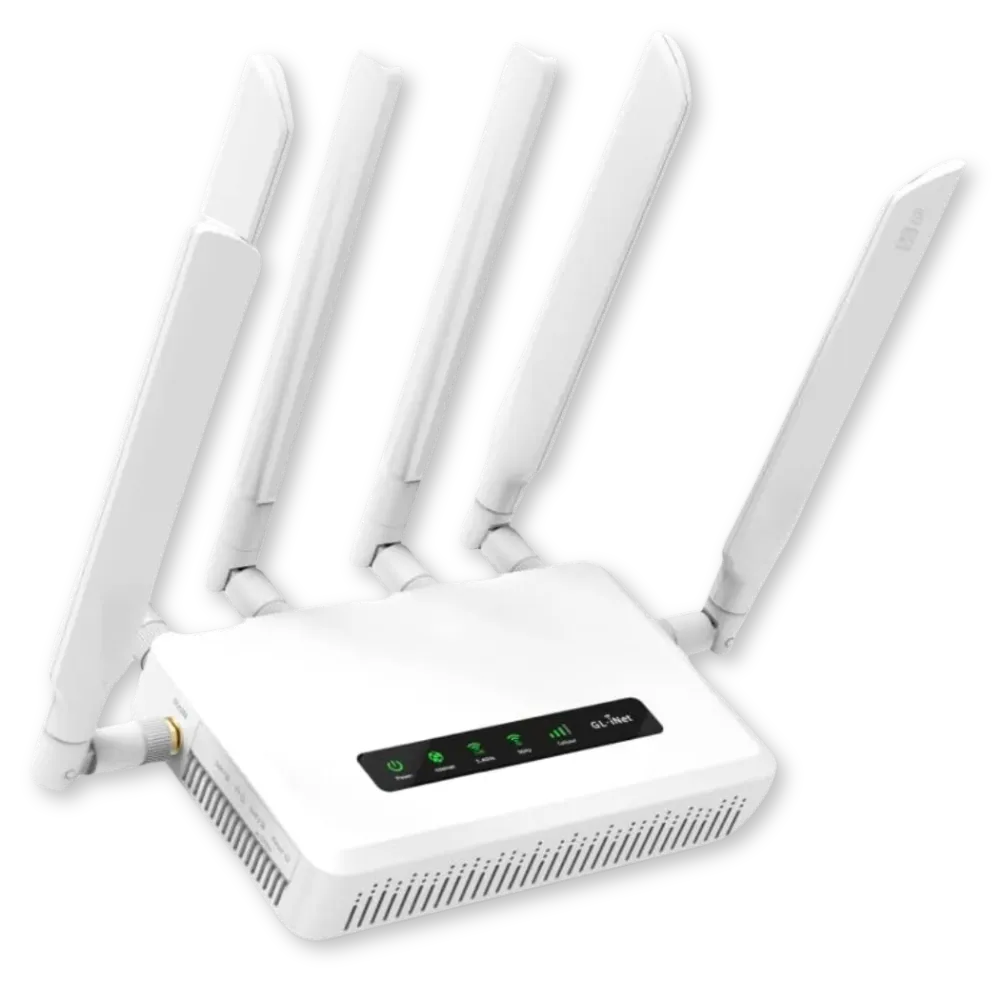
If you have the white modem below (GL-X750 Spitz), here’s how to stay up to date:


Click Here for Video

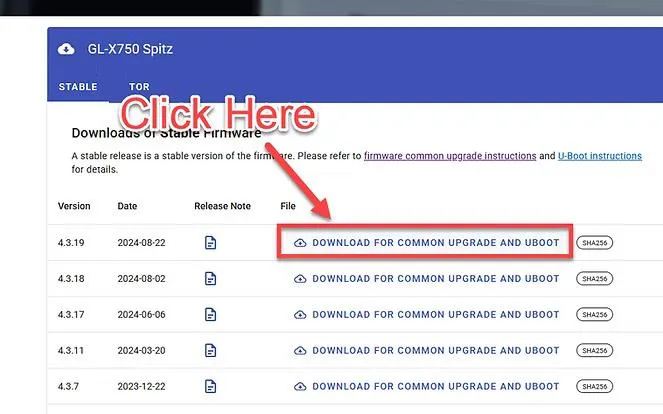
First, we need to get the newest Firmware File.
Go to https://dl.gl-inet.com/?model=x750
and click Download at the top.

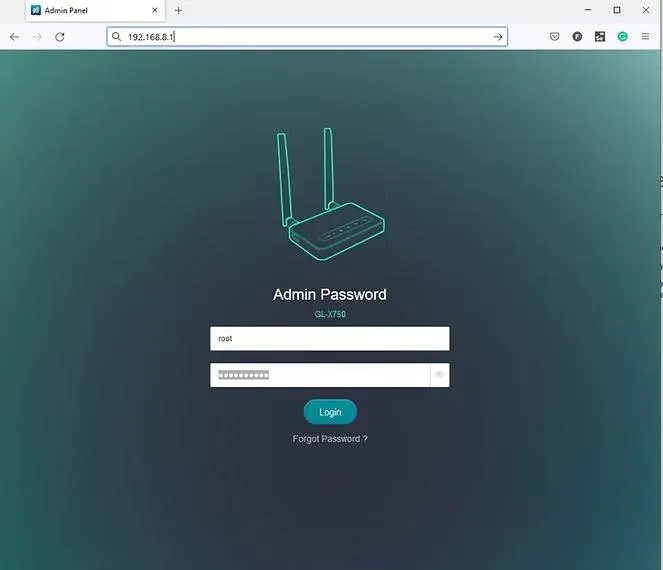
At the top of your web browser, enter "192.168.8.1" into the url bar.This will connect you to the modem.
The password is 1234554321
If it asks for the user, enter "root"

Once you get to the home screen, look for a side panel to the left. (You may need to click ≡ icon in the top left if you are on mobile.)
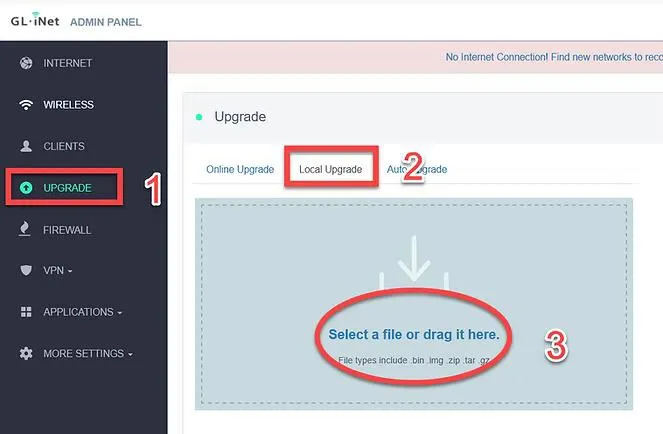
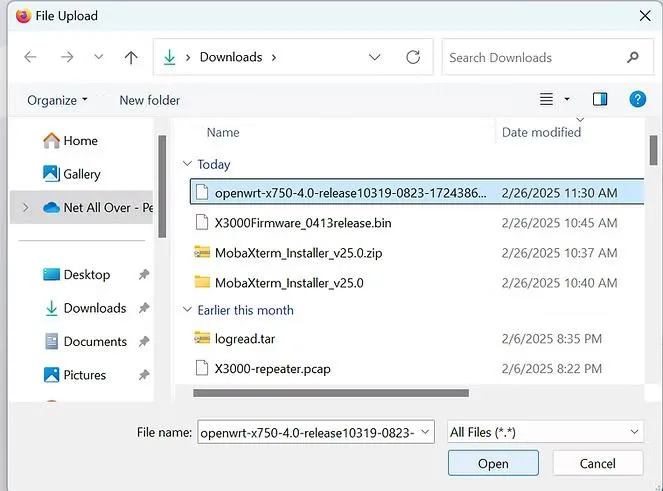
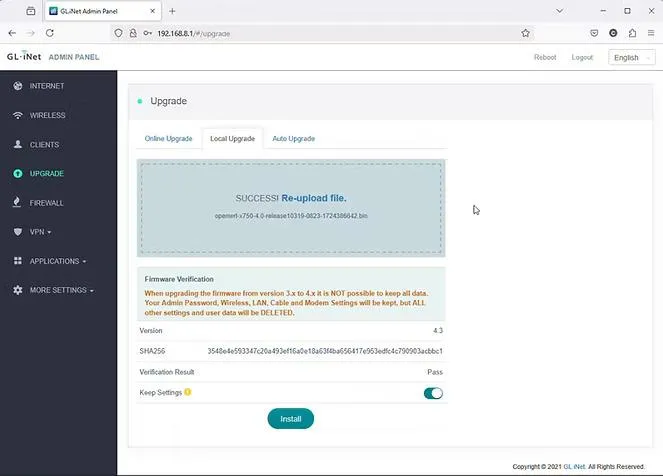
Click on the Upgrade Tab. Click the “Local Upgrade Tab” Drag-and-Drop or click to upload the file.
Then click "Install"
The modem may take several minutes to install and reboot. This process is simple, quick, and highly encouraged!

After it finishes, there are two last things to update.If it asks for a new password, type '1234554321' again.

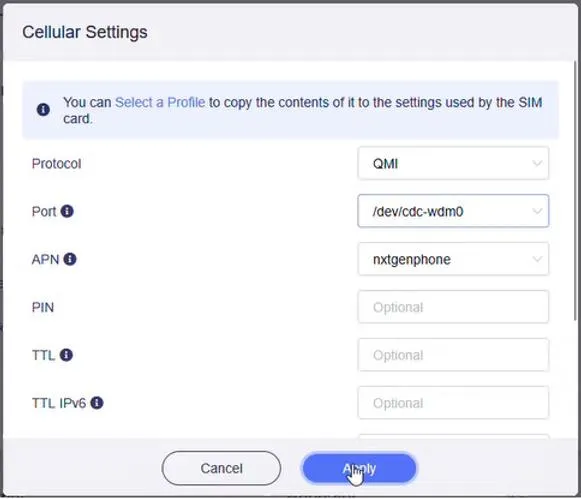
from the home screen, click Manual Setup.Make sure the Protocol is set to QMI, Not 3G

Make sure the APN is nxtgenphone. Use drop-down or type if blank. If the APN says fast.t-mobile.com skip this step.

Now Look for a side panel to the left. (You may need to click ≡ icon in the top right if you are on mobile.)Click Applications, then click GoodCloud. Check all of the boxes in the center screen and apply.
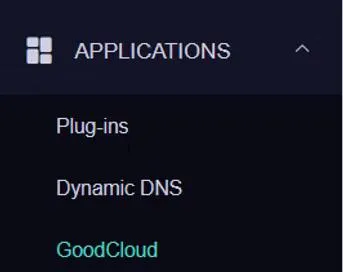
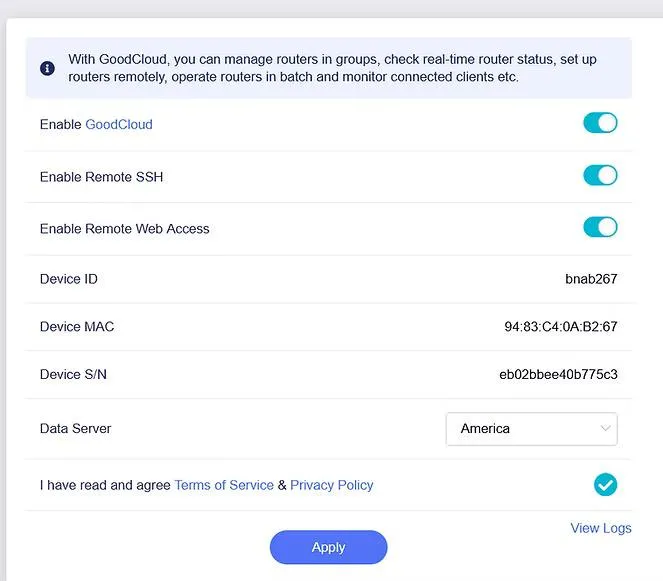
We have seen speeds double with the new firmware in some cases. Your mileage may vary.

If you have any trouble or issues with the process, contact us at 888-425-3656 or by email at [email protected]
You can also use the chat box at the bottom right of this page.

Quick Links

Will the service work where I live?

We are constantly adding new towers. Currently over 94 percent of the U.S. can get service from us. We cannot promise it, but if you live within 5-8 miles of a cell tower, there is a pretty good chance the service will work. We offer a "no-questions asked", full thirty (30) day money-back guarantee, so there is no risk in trying it out.

How long does it take to receive it?

Once your device has been shipped you should receive it within 2-3 Business Days.

What speeds will I get?

As far as speeds go, that varies per customer depending on their location. Environmental factors such as trees, hills, mountains, etc. can all affect the signal. Metal roofing can be a factor in low speeds. Distance to the nearest tower can play a role. Also, how many people are on that tower in terms of congestion. There is unfortunately no way for us to know what speeds you will get until you try the device. This is why we offer the 30-day money back guarantee. We give all our customers the chance to try the service risk free.

Can I make it faster?

Yes, but you will have to consider doing one or more of the following things:​

Move the LTE router to various places inside your home or office to see if it gets faster. Near windows works best. We can also tell you which direction to aim it and if you put it near a window on that side of the house or building, it will help.

Connect an external antenna to the LTE router and fix the antenna to the outside of your house or office. We can supply you with these antennas for an additional one-time charge.

Connect an external LTE radio to the outside of your house or building and run a cable inside to your router. We can supply you with this LTE radio for an additional one-time charge.

Mount the external LTE radio to a tower or high pole and run the cable inside to your router. We can supply you with all of the equipment and parts for an additional charge as well as provide you with a referral to someone in your area who can assist you with installation if needed.

What is the start up cost?

Start-up cost depends on the plan and router you choose.


Our plans start at $55/month* which includes government taxes and compliance fees. If you purchase a 5G router, you'll receive your first month of Internet FREE as part of our Sale + plus, your shipping is free and Programming Fee is Waived on all plans!


There are no hidden fees and no need to bundle—just reliable, affordable internet tailored to your needs.

*New Subscriptions only.

What if it doesn't work?

We offer a full 30-day money back guarantee. If you are not satisfied with the service for whatever reason, please give us a call and let us know and we’ll make arrangements for you to send the device back. As long as we receive it back within the initial 30-day period you will be able to get a full refund. If you are experiencing technical issues, please give us a call and our tech support team will be more than happy to assist you.

(888) 214-4130

23705 Interstate 10 W, Suite 209

San Antonio, TX 78257

© Copyright SilverLink Internet 2026. All rights reserved.