Need Help

Setting up

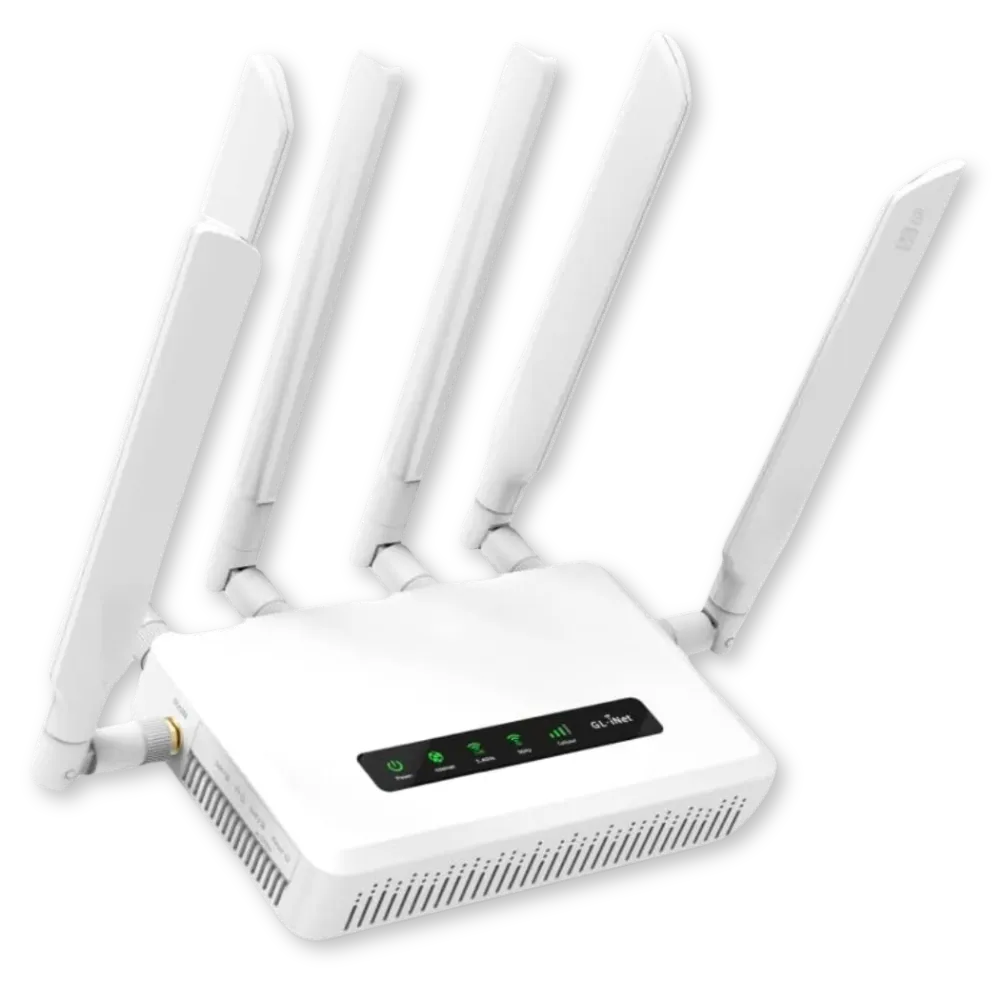
SPITZ X3000 5G CAT 16 ROUTER

How Do I Change My Wi-Fi Name and Password?


A Simple Guide from SilverLink Internet

Changing your Wi-Fi name and password is a smart way to keep your internet secure and make your network easier to recognize. Here's how to do it in just a few simple steps!

Why Should I Change My Wi-Fi Name and Password?

  • Better Security: The default password is the same for many users. Changing it helps stop unwanted users from connecting to your internet.

  • Make It Personal: Use a name like “SmithFamilyWiFi” or “GrannySueInternet” so you can find your network easily.

  • Stay in Control: If someone you no longer trust has your password—or if you’ve had a lot of guests—this gives you a fresh start.

  • Improve Connection: Sometimes, changing settings can help avoid interference from other networks nearby.

Step-by-Step: How to Change Your Wi-Fi Name and Password

Step 1: Plug in with an Ethernet cord

►Plug one end of an ethernet cord into your computer or laptop.

►Plug the other end into the LAN port on your SilverLink modem/router (it’s the port closest to the power plug).

Step 2: Login to Your Router

►Open a web browser (like Chrome, Safari, or Edge).

►In the top bar (where you type website addresses), type:

192.168.8.1

►Then press Enter on your keyboard.

►If it asks for a username and password:

Username: root

Password: 1234554321

Step 3: Change Your Wi-Fi Name and Password

►On the left-hand menu, click WIRELESS.

►Click Modify under the 2.4GHz settings.

►Change the Wi-Fi Name (SSID) to something easy to remember (like “SmithWiFi”).

►Change the Wi-Fi Key (that’s your password) to something strong but simple for you (like “Grandma2024!”).

►Click Apply to save your changes.
✦Repeat these same steps for the 5GHz settings listed below the 2.4GHz section.

Step 4: Restart Your Router

►Unplug the power cord from the router.

►Wait 10 seconds.

►Plug it back in.
✦This makes sure all your changes take effect properly.

Your Done!

Now your internet has a name and password that you chose. It’s safer, easier to recognize, and ready to go!

Need Help?

If any part of this is confusing or you just don’t feel comfortable doing it yourself, call SilverLink Internet Support at 888-214-4130.

We’re happy to walk you through it!

Quick Links

Will the service work where I live?

We are constantly adding new towers. Currently over 94 percent of the U.S. can get service from us. We cannot promise it, but if you live within 5-8 miles of a cell tower, there is a pretty good chance the service will work. We offer a "no-questions asked", full thirty (30) day money-back guarantee, so there is no risk in trying it out.

How long does it take to receive it?

Once your device has been shipped you should receive it within 2-3 Business Days.

What speeds will I get?

As far as speeds go, that varies per customer depending on their location. Environmental factors such as trees, hills, mountains, etc. can all affect the signal. Metal roofing can be a factor in low speeds. Distance to the nearest tower can play a role. Also, how many people are on that tower in terms of congestion. There is unfortunately no way for us to know what speeds you will get until you try the device. This is why we offer the 30-day money back guarantee. We give all our customers the chance to try the service risk free.

Can I make it faster?

Yes, but you will have to consider doing one or more of the following things:​

Move the LTE router to various places inside your home or office to see if it gets faster. Near windows works best. We can also tell you which direction to aim it and if you put it near a window on that side of the house or building, it will help.

Connect an external antenna to the LTE router and fix the antenna to the outside of your house or office. We can supply you with these antennas for an additional one-time charge.

Connect an external LTE radio to the outside of your house or building and run a cable inside to your router. We can supply you with this LTE radio for an additional one-time charge.

Mount the external LTE radio to a tower or high pole and run the cable inside to your router. We can supply you with all of the equipment and parts for an additional charge as well as provide you with a referral to someone in your area who can assist you with installation if needed.

What is the start up cost?

Start-up cost depends on the plan and router you choose.


Our plans start at $55/month* which includes government taxes and compliance fees. If you purchase a 5G router, you'll receive your first month of Internet FREE as part of our Sale + plus, your shipping is free and Programming Fee is Waived on all plans!


There are no hidden fees and no need to bundle—just reliable, affordable internet tailored to your needs.

*New Subscriptions only.

What if it doesn't work?

We offer a full 30-day money back guarantee. If you are not satisfied with the service for whatever reason, please give us a call and let us know and we’ll make arrangements for you to send the device back. As long as we receive it back within the initial 30-day period you will be able to get a full refund. If you are experiencing technical issues, please give us a call and our tech support team will be more than happy to assist you.

(888) 214-4130

23705 Interstate 10 W, Suite 209

San Antonio, TX 78257

© Copyright SilverLink Internet 2026. All rights reserved.