
Need Help
Issues with X750?
SPITZ X3000 5G CAT 16 ROUTER
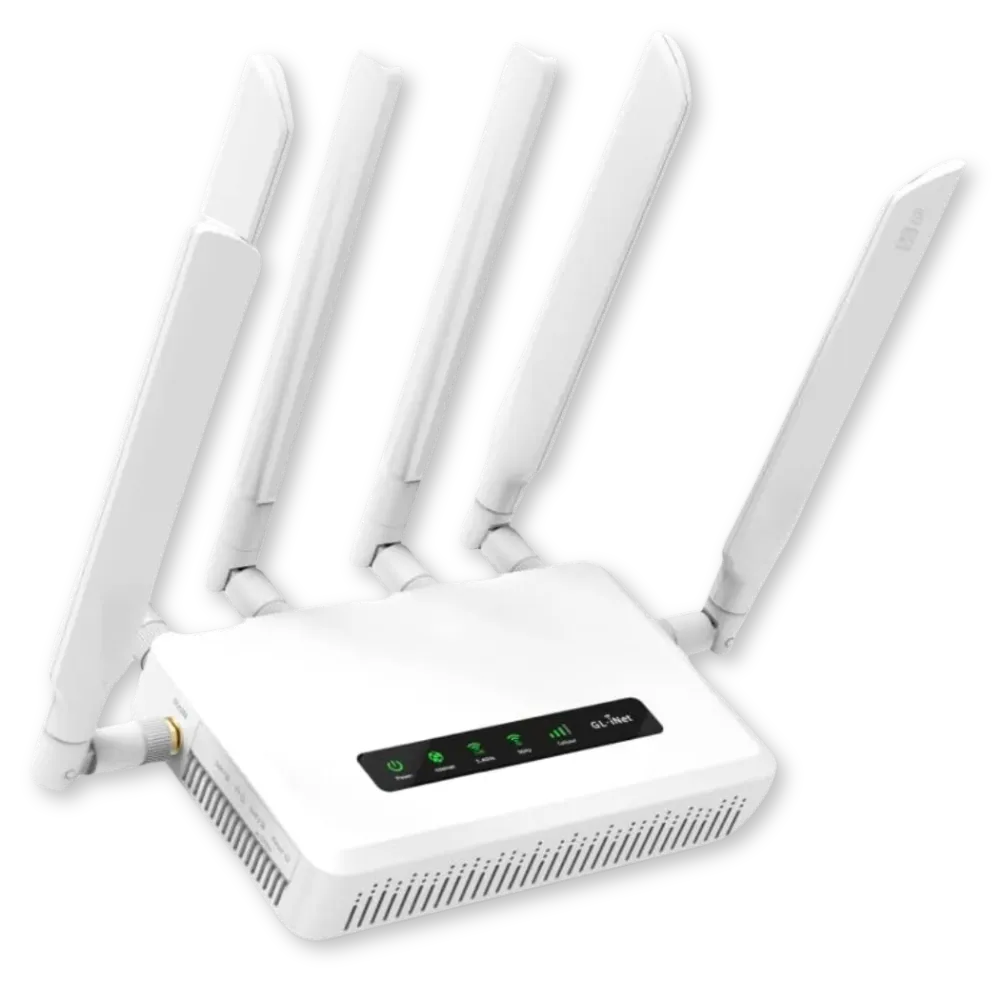
Having Trouble with Your SilverLink Wireless LTE Device?
If your internet isn’t working right, don’t worry—this guide will walk you through a few simple steps to help figure out what’s going on. If it still doesn’t work, SilverLink Internet is just a phone call away.
You’re not alone.
Step 1:
Are You Connected to Your SilverLink Device?
►Look at your device’s Wi-Fi name on your phone, tablet, or computer.
If you see something like: SSID: SilverLink Internet 5G or SilverLink Internet 2.4G (You’ll find this name on a sticker on the bottom of your device)
►Then connect using the password from the same sticker: Password: SeniorsRule!
Once you’re connected, let’s check how strong your signal is.
Step 2:
Check the Signal Light (The Bars on Your Device)
► Look at the signal bars on your white SilverLink device (the one with the antennas):
If the signal bars are GREEN:
✦ That means your device is connected to the cell tower and should be working.
✦ Double-check that you are connected to the right Wi-Fi network and not someone else’s.
✦ If things are still slow, it may just be a slow connection, not a total outage.
Try this:
► Unplug the white router from the the wall
► Wait 15 seconds, then plug it back in.
► Wait about 2-5 minutes while it restarts
✦ If you still don’t have internet after the lights come back on, the problem may be with your local cell tower.
If it’s not working after 24 hours, call us at 888-214-4130 for further assistance.
If the signal bars are BLANK(No Lights):
✦ That means your device is not connecting to the tower.
✦ Check that the antennas are screwed on tightly.
✦ Take the device outside, using an extension cord if needed.
► If the light turns GREEN outside, your signal indoors may be too weak. You’ll likely need an external antenna to get better reception.
► If it still shows no lights, it may need something called an APN Reset.
(You or a helper can ask SilverLink Support for the instructions.)
Still no luck? Call 888-214-4130, and we’ll help you right away.
Step 3:
If you can’t connect wirelessly, try connecting with a cable:
Use an ethernet cable to connect the SilverLink device directly to your computer.
Open your internet browser and try to visit a website.
If it works:
Your internet is working through the cable.
✦But if your Wi-Fi still isn’t working, follow the steps in the “Wi-Fi Device Settings” guide above (we can provide that too).
✦ If things are still slow, it may just be a slow connection, not a total outage.
If it does not work:
► Make sure the cable is firmly connected on both ends.
► The computer should get a signal from the device (an IP address).
► If everything is plugged in and it still won’t connect, the device may be defective.
✦ SilverLink will replace it for free.
Please put the old router back into the box it came in. Give us a call at 888-214-4130 to let us know about the ongoing issues. We will send you a return label by email. When you get the label, stick it on the box. Then, mail the box back to us.
Still Need help?
We’re happy to walk you through this over the phone.
Just call SilverLink Internet Support at: 888-214-4130
You’ll speak to someone friendly who’s here to help—step by step.


